I will recommend you to do this:
1. Open Registry Editor by typing regedit in Run dialog.
2. Navigate to the key HKEY_LOCAL_MACHINE\SYSTEM\CurrentControlSet\Control\
3. Find a sub key inside it named “StorageDevicePolicies”.
4. Now find a Dword key named "Writeprotect"
5. Modify this key 1 to 0.
6. Click OK, and remember to restart the PC
Monday, October 5, 2009

Sunday, October 4, 2009
Difference between Bluetooth and Infrared technology
Infrared technology is what most TV remotes use. The distance an infrared signal can travel varies based on the strength of the remote, but is usually less than 50 feet for household electronics. In order for an infrared signal to be detected, there must be a direct line of sight between the transmitter (remote) and the receiver (TV). If there is a wall or large object between them, the signal will not pass through it.
Bluetooth, on the other hand, uses a radio frequency, which allows transmission through walls and other objects. The standard range of a Class 3 Bluetooth device is about 30 ft., which makes it ideal for syncing PDAs with computers, using wireless cell phone headsets, and enabling handsfree cell phone use inside Bluetooth-enabled automobiles. Because Bluetooth technology is based on a standard 2.4 GHz frequency, different Bluetooth devices can typically communicate with each other, regardless of the manufacturer. Most infrared devices only work with proprietary equipment.
While Bluetooth is well on its way to replacing infrared in many different areas, the technology is not meant to be used for wireless networking. Instead, Wi-Fi technology, which has a larger range and higher bandwidth than Bluetooth, is the standard that most wireless networking equipment uses.
Bluetooth, on the other hand, uses a radio frequency, which allows transmission through walls and other objects. The standard range of a Class 3 Bluetooth device is about 30 ft., which makes it ideal for syncing PDAs with computers, using wireless cell phone headsets, and enabling handsfree cell phone use inside Bluetooth-enabled automobiles. Because Bluetooth technology is based on a standard 2.4 GHz frequency, different Bluetooth devices can typically communicate with each other, regardless of the manufacturer. Most infrared devices only work with proprietary equipment.
While Bluetooth is well on its way to replacing infrared in many different areas, the technology is not meant to be used for wireless networking. Instead, Wi-Fi technology, which has a larger range and higher bandwidth than Bluetooth, is the standard that most wireless networking equipment uses.
What is the difference between Hibernate and Standby in Windows XP?
Hibernate and Standby are two different sleep options offered in Windows XP.
Hibernate saves an image of your desktop, including all open windows and files. Then it powers down your computer just as if you had turned it off. When you turn your computer on again, your windows and files are open just as you left them.
Standby is a more traditional sleep mode, as it reduces the power your computer uses to almost nothing. When you select Standby, the power to your screen, hard drive, and peripheral devices is cut. However, the power to the computer's memory (RAM) is maintained so your open files stay open.
Hibernate saves an image of your desktop, including all open windows and files. Then it powers down your computer just as if you had turned it off. When you turn your computer on again, your windows and files are open just as you left them.
Standby is a more traditional sleep mode, as it reduces the power your computer uses to almost nothing. When you select Standby, the power to your screen, hard drive, and peripheral devices is cut. However, the power to the computer's memory (RAM) is maintained so your open files stay open.
What does a server do?
A server is a computer that serves information to other computers. These computers, called clients, can connect to a server through either a local area network (LAN) or a wide area network (WAN), such as the Internet.
There are a number of different types of servers, including Web servers, mail servers, and file servers. A web server serves Web pages to computers that connect to it. It also can parse scripting languages such as PHP, ASP, and JSP. A mail server stores users' e-mail accounts and sends and receives e-mail messages. For example, when you send an e-mail to a friend, the message is sent by a mail server, using the SMTP protocol. A file server is a computer that stores files that can be accessed by other computers. File servers are often used within local networks and typically require a password or some kind of authentication to connect to it.
These are a few examples of some common servers, but several other types of servers exist. Just about any computer can be used as a server if the necessary server software is installed on it. While servers typically don't need a lot of processing power, lots of RAM and fast hard drives are helpful for dealing with heavy traffic to and from the server.
There are a number of different types of servers, including Web servers, mail servers, and file servers. A web server serves Web pages to computers that connect to it. It also can parse scripting languages such as PHP, ASP, and JSP. A mail server stores users' e-mail accounts and sends and receives e-mail messages. For example, when you send an e-mail to a friend, the message is sent by a mail server, using the SMTP protocol. A file server is a computer that stores files that can be accessed by other computers. File servers are often used within local networks and typically require a password or some kind of authentication to connect to it.
These are a few examples of some common servers, but several other types of servers exist. Just about any computer can be used as a server if the necessary server software is installed on it. While servers typically don't need a lot of processing power, lots of RAM and fast hard drives are helpful for dealing with heavy traffic to and from the server.
Which is faster -- Kbps or Mbps?
Kbps stands for "kilobits per second," while Mbps stands for "megabits per second." Because one megabit is equal to 1024 kilobits, 1.0 Mbps is over 1000 times faster than 1.0 Kbps.
Note that the lowercase "b" in Kbps and Mbps means "bit," not byte. One byte is equal to eight bits. For example, 2 MBps equals 16 Mbps. This is a small but important difference to be aware of. Data transfer rates are typically measured in bits, while data storage capacity is usually measured in bytes.
Note that the lowercase "b" in Kbps and Mbps means "bit," not byte. One byte is equal to eight bits. For example, 2 MBps equals 16 Mbps. This is a small but important difference to be aware of. Data transfer rates are typically measured in bits, while data storage capacity is usually measured in bytes.
What is Copy and Paste and how does it work?
Copying and pasting is one of the most useful capabilities of your computer. When you select text in a document, you can often copy the selection and paste it somewhere else. This helps you aviod the monotonous re-typing of large sections of text.
Your computer's operating system (Windows, MacOS, Linux, etc.) has what is called a "clipboard" where it stores copied objects. Because the clipboard is controlled by the operating system, you can copy and paste text between applications. Not only can you copy and paste text, but you can copy and paste images and even actual files.
Because one program may allow for different formatting of text than another, when you paste text may not be the same as what you copied. For example, you may copy a phrase from Microsoft Word that is in bold type, uses the Verdana font, and is size 16 pt. If you paste it in your system's Notepad, it will appear as regular, unformatted text. Because Notepad doesn't support text-formatting, it will accept the text from the clipboard, but not the formatting. Copying and pasting images between programs may also yield similar results.
You can also "cut" text or an image from a document. This is the same as copying it to the clipboard, but it also removes the object from the document at the same time.
Your computer's operating system (Windows, MacOS, Linux, etc.) has what is called a "clipboard" where it stores copied objects. Because the clipboard is controlled by the operating system, you can copy and paste text between applications. Not only can you copy and paste text, but you can copy and paste images and even actual files.
Because one program may allow for different formatting of text than another, when you paste text may not be the same as what you copied. For example, you may copy a phrase from Microsoft Word that is in bold type, uses the Verdana font, and is size 16 pt. If you paste it in your system's Notepad, it will appear as regular, unformatted text. Because Notepad doesn't support text-formatting, it will accept the text from the clipboard, but not the formatting. Copying and pasting images between programs may also yield similar results.
You can also "cut" text or an image from a document. This is the same as copying it to the clipboard, but it also removes the object from the document at the same time.
Wednesday, September 30, 2009
What are kibibytes, mebibytes, and gibibytes?
The size of computer data is measured in bytes. Larger units of bytes are often measured in kilobytes, megabytes, and gigabytes. However, the size of these units can be somewhat ambiguous. For example, a kilobyte can equal 1,024 bytes or 1,000 bytes, depending on the context in which it is used. A megabyte may equal 1,048,576 bytes or 1,000,000 bytes.
In 1998, the International Electrotechnical Commission (IEC) introduced new units of measurement to avoid this confusion. These units are all exact measurements and cannot be estimated like kilobytes, megabytes, and gigabytes. The new IEC units are listed below:
1. byte (B)
2. kibibyte (KiB) - 2^10
3. mebibyte (MiB) - 2^20
4. gibibyte (GiB) - 2^30
5. tebibyte (TiB) - 2^40
6. pebibyte (PiB) - 2^50
7. exbibyte (EiB) - 2^60
8. zebibyte (ZiB) - 2^70
9. yobibyte (YiB) - 2^80
For a list of the more commonly used, but also more ambiguous SI units of data storage, view this article.
In 1998, the International Electrotechnical Commission (IEC) introduced new units of measurement to avoid this confusion. These units are all exact measurements and cannot be estimated like kilobytes, megabytes, and gigabytes. The new IEC units are listed below:
1. byte (B)
2. kibibyte (KiB) - 2^10
3. mebibyte (MiB) - 2^20
4. gibibyte (GiB) - 2^30
5. tebibyte (TiB) - 2^40
6. pebibyte (PiB) - 2^50
7. exbibyte (EiB) - 2^60
8. zebibyte (ZiB) - 2^70
9. yobibyte (YiB) - 2^80
For a list of the more commonly used, but also more ambiguous SI units of data storage, view this article.
What is the difference between bits and bytes?
Bits and Bytes both measure amounts of data. However, they are typically used in two different contexts.
Bits, kilobits (Kbps), and megabits (Mbps) are most often used to measure data transfer speeds. This may refer to how fast you are downloading a file, or how fast your Internet connection is. For example, if you are downloading a file on cable modem, your download speed might be 240Kbps. This is much faster than a dial-up modem, which maxes out at 56Kbps.
Bytes, on the other hand, are used to measure data storage. For example, a CD holds 700MB (megabytes) of data and a hard drive may hold 250GB (gigabytes). The other important difference is that bytes contain eight bits of data. Therefore, a 240Kbps download is only transferring 30KB of data per second. However, kilobytes per second is not as commonly used as kilobits per second for measuring data transfer speeds. After all, using kilobits per second (Kbps) makes your connection sound eight times faster!
It is important to know that bytes are abbreviated with a capital B, where as bits use a lowercase b. Therefore, Mbps is megabits per second, and MBps is megabytes per second. So 8Mbps is equal to 1MBps.
Bits, kilobits (Kbps), and megabits (Mbps) are most often used to measure data transfer speeds. This may refer to how fast you are downloading a file, or how fast your Internet connection is. For example, if you are downloading a file on cable modem, your download speed might be 240Kbps. This is much faster than a dial-up modem, which maxes out at 56Kbps.
Bytes, on the other hand, are used to measure data storage. For example, a CD holds 700MB (megabytes) of data and a hard drive may hold 250GB (gigabytes). The other important difference is that bytes contain eight bits of data. Therefore, a 240Kbps download is only transferring 30KB of data per second. However, kilobytes per second is not as commonly used as kilobits per second for measuring data transfer speeds. After all, using kilobits per second (Kbps) makes your connection sound eight times faster!
It is important to know that bytes are abbreviated with a capital B, where as bits use a lowercase b. Therefore, Mbps is megabits per second, and MBps is megabytes per second. So 8Mbps is equal to 1MBps.
What does the "NT" stand for in Windows NT?
The NT in Windows NT stands for "New Technology." Windows NT was built with primarily the same interface as Windows 95, but included new technology such as preemptive multitasking and was the first 32-bit version of the Windows operating system. Some argue that because of the new networking options included with Windows NT, the abbreviation stands for "Networking Technology." However the official meaning of NT, according to Microsoft, is "New Technology."
Windows NT was originally developed to be a a reliable and scalable operating system for businesses. However, the NT kernel later became the foundation of Windows 2000 and then Windows XP, which is available in both Home and Professional versions.
Windows NT was originally developed to be a a reliable and scalable operating system for businesses. However, the NT kernel later became the foundation of Windows 2000 and then Windows XP, which is available in both Home and Professional versions.
Can someone hack into my computer if it is not connected to the Internet?
If your computer is not connected to the Internet, there is no way for information to be transmitted to or from the computer over the Internet. If you have a modem connected to a phone line and have your computer set to receive incoming calls, it is theoretically possible for someone to hack into it, but extremely unlikely.
The only way for someone to hack into a computer not connected to the Internet or a phone line it is to physically use the computer. While manufacturers may include chips that uniquely identify your computer, they do not put in chips that transmit any kind of information about your system. Any personal information you have on your computer is stored on your hard drive and is safe as long as no one accesses it. Therefore, it is a good idea to require a password to log in to your computer. It is also wise to erase your hard drive and "zero all data" before selling or giving your computer to someone else.
The only way for someone to hack into a computer not connected to the Internet or a phone line it is to physically use the computer. While manufacturers may include chips that uniquely identify your computer, they do not put in chips that transmit any kind of information about your system. Any personal information you have on your computer is stored on your hard drive and is safe as long as no one accesses it. Therefore, it is a good idea to require a password to log in to your computer. It is also wise to erase your hard drive and "zero all data" before selling or giving your computer to someone else.
Should I turn off my computer or put it to sleep
This question can invoke quite a bit of debate, but my short answer is to put the computer to sleep each night or any time you leave the computer for more than 15 minutes. If you are not going to use the computer for more than a day (such as leaving it for the weekend), it is best to turn the computer off.
Idle 15 minutes to 24 hours: Sleep Idle 24 hours or more: Shut Down
When a computer is in "sleep" or "standby" mode, it consumes almost no energy, so the difference between letting it sleep overnight or turning it off during the night is negligible. However, if you have a laptop running off a battery charge, the difference may be noticeable. I have noticed that my laptop's battery life only lasts about five to six days in sleep mode, but will last for weeks if the computer is off. Therefore, if you are not going to be using your laptop for more than a few hours and do not have AC power available, it is best to turn the computer off.
The most important way to save energy is to not leave the computer running normally when you are not using it. I have my computer set to automatically sleep if it is idle for 15 minutes and my screen dims after 5 minutes. This way, I know that I won't accidentally leave my computer running for a long period of time. I also put my computer to sleep manually if I know I am going to be taking a break for more than 15 minutes.
Finally, if you put your computer to sleep every night and hardly ever turn if off, it may be good to at least restart the computer every few weeks. This may help improve performance in case some errant processes are consuming unnecessary RAM or CPU time.
Windows users: Read more about the differences between Standby and Hibernate modes.
Mac users: The Mac OS X keyboard shortcut for putting your computer to sleep is Command-Option-Eject.
Idle 15 minutes to 24 hours: Sleep Idle 24 hours or more: Shut Down
When a computer is in "sleep" or "standby" mode, it consumes almost no energy, so the difference between letting it sleep overnight or turning it off during the night is negligible. However, if you have a laptop running off a battery charge, the difference may be noticeable. I have noticed that my laptop's battery life only lasts about five to six days in sleep mode, but will last for weeks if the computer is off. Therefore, if you are not going to be using your laptop for more than a few hours and do not have AC power available, it is best to turn the computer off.
The most important way to save energy is to not leave the computer running normally when you are not using it. I have my computer set to automatically sleep if it is idle for 15 minutes and my screen dims after 5 minutes. This way, I know that I won't accidentally leave my computer running for a long period of time. I also put my computer to sleep manually if I know I am going to be taking a break for more than 15 minutes.
Finally, if you put your computer to sleep every night and hardly ever turn if off, it may be good to at least restart the computer every few weeks. This may help improve performance in case some errant processes are consuming unnecessary RAM or CPU time.
Windows users: Read more about the differences between Standby and Hibernate modes.
Mac users: The Mac OS X keyboard shortcut for putting your computer to sleep is Command-Option-Eject.
Can someone spy on my computer?
With all the different types of spyware and malware floating around, it is natural to wonder if other users can see what you are doing on your computer. The good news is that it is very unlikely.
Most modern operating systems, such as Mac OS X and Windows Vista, have a high level of security that prevents unauthorized access. Even if there is a partial breach in your system's security, it is still nearly impossible for another user to spy on your system. For example, a major security hole may give an unknown user access to a directory on your hard drive, but he or she would still not be able to "see" your computer. Also, spyware programs may collect data without your knowledge, but this information is only acquired from the spyware program itself, not the rest of the system.
The most likely way for someone to spy on your system is with a Remote Desktop program. These programs, such as PC Anywhere, Windows Remote Desktop Connection (RDC), and Apple Remote Desktop, allow users to view another computer's screen on their desktop. Of course, the computer being accessed must allow incoming connections for this to happen. This option is typically turned off by default. However, if your computer is part of an office network, you may want to ask the network administrator if your computer has remote access enabled. If so, it may be possible for someone on your local network to view your computer screen.
Fortunately, most remote desktop programs have notifications that alert the user if the computer is being observed by someone else. These notifications may appear in the Task Bar (Windows) or the Menu Bar (Mac). So if you're at work and you see an icon that looks like a pair of eyes or a binoculars appear somewhere on your desktop, someone may in fact be watching your screen. It might be time to close Solitaire and get back to work.
Most modern operating systems, such as Mac OS X and Windows Vista, have a high level of security that prevents unauthorized access. Even if there is a partial breach in your system's security, it is still nearly impossible for another user to spy on your system. For example, a major security hole may give an unknown user access to a directory on your hard drive, but he or she would still not be able to "see" your computer. Also, spyware programs may collect data without your knowledge, but this information is only acquired from the spyware program itself, not the rest of the system.
The most likely way for someone to spy on your system is with a Remote Desktop program. These programs, such as PC Anywhere, Windows Remote Desktop Connection (RDC), and Apple Remote Desktop, allow users to view another computer's screen on their desktop. Of course, the computer being accessed must allow incoming connections for this to happen. This option is typically turned off by default. However, if your computer is part of an office network, you may want to ask the network administrator if your computer has remote access enabled. If so, it may be possible for someone on your local network to view your computer screen.
Fortunately, most remote desktop programs have notifications that alert the user if the computer is being observed by someone else. These notifications may appear in the Task Bar (Windows) or the Menu Bar (Mac). So if you're at work and you see an icon that looks like a pair of eyes or a binoculars appear somewhere on your desktop, someone may in fact be watching your screen. It might be time to close Solitaire and get back to work.
Why polygons are used in 3D graphics
As realistic as 3D graphics may appear, they are typically comprised of flat, multi-sided polygons. These polygons are placed together to create a three-dimensional mesh, which produces a 3D image. While most polygons are triangles (which have the fewest possible sides), they can also be rectangles, hexagons, or other shapes. Colors and textures can be mapped onto these polygons, giving the final image a realistic appearance.
Because polygons are flat surfaces, they can only estimate curved shapes, which many objects have. Therefore, smaller polygons can more accurately represent curved objects. Of course, using smaller polygons also means more polygons are required to create the object. So the more polygons a 3D model has, the more smooth and realistic it will look.
For example, imagine a 3D image of a round ball that is three inches in diameter. If the ball was made up of only 100 polygons, it would be easy to notice the flat surfaces, making the ball seem rather blocky. However, if 1,000 polygons were used, the shapes would be less noticeable, giving the ball a smoother look. If 100,000 polygons were used to create the surface of the ball, the ball might appear completely round. The same concept holds true for more complex models, such as three-dimensional characters and other objects.
Thanks to advances in graphics processing technology, today's video cards can render millions of polygons per second. This allows for several highly detailed 3D models to be displayed on the screen at one time. Therefore, if you want to play a 3D video game on your computer with highly realistic graphics, chances are you'll need a video card with a powerful GPU.
Because polygons are flat surfaces, they can only estimate curved shapes, which many objects have. Therefore, smaller polygons can more accurately represent curved objects. Of course, using smaller polygons also means more polygons are required to create the object. So the more polygons a 3D model has, the more smooth and realistic it will look.
For example, imagine a 3D image of a round ball that is three inches in diameter. If the ball was made up of only 100 polygons, it would be easy to notice the flat surfaces, making the ball seem rather blocky. However, if 1,000 polygons were used, the shapes would be less noticeable, giving the ball a smoother look. If 100,000 polygons were used to create the surface of the ball, the ball might appear completely round. The same concept holds true for more complex models, such as three-dimensional characters and other objects.
Thanks to advances in graphics processing technology, today's video cards can render millions of polygons per second. This allows for several highly detailed 3D models to be displayed on the screen at one time. Therefore, if you want to play a 3D video game on your computer with highly realistic graphics, chances are you'll need a video card with a powerful GPU.
What does a bank refer to in computer terminology ?
Most of us think of banks as places where we can deposit and withdraw money. In the computer world, the term "bank" is a bit more ambiguous. It can mean several different things, but most often it refers to a memory bank. Memory banks are similar to financial banks, except they serve as a data repository rather than a place to store money.
A bank may also refer to a set of memory modules, such as SIMMs or DIMMs. Memory modules are sometimes organized into different groups on a motherboard and each group is called a bank.
Finally, the term "bank" can be loosely used to describe a general storage area for computer data. For example, a person might say he uploaded a backup copy of his document to an online data bank. Once the document is stored in the data bank, the user can retrieve it at a later time.
A bank may also refer to a set of memory modules, such as SIMMs or DIMMs. Memory modules are sometimes organized into different groups on a motherboard and each group is called a bank.
Finally, the term "bank" can be loosely used to describe a general storage area for computer data. For example, a person might say he uploaded a backup copy of his document to an online data bank. Once the document is stored in the data bank, the user can retrieve it at a later time.
How do I choose a good password
Since so many websites and computer systems require you to create login information, it is important to know how to create a good password. Choosing a good, secure password will help prevent unauthorized access to your private information, which may save you from some serious headaches down the road.
While only you can choose the best password for your purposes, I have created the following 9 Password Guidelines that you may find helpful.
1. Avoid default passwords.
Please avoid the all-too-common mistake of using generic passwords, such as "password," "1234," or even your name or your phone number. Some systems automatically set up your user account with a basic password like these. Make sure you change it.
2. Choose a password that is difficult to guess.
The purpose of a password is to prevent others from accessing your private information. Therefore, don't use a birthday, pet name, sports team, or other word or phrase that someone might be able to guess.
3. Choose a password that is easy to remember.
While your password should be hard for others to guess, make sure you can remember it. Having to request a forgotten password means it will usually be sent to you via e-mail, which is an unsecured medium.
4. Use both letters and numbers.
This makes it much less likely for others to guess your password. It will also make it much more difficult for any type of password-hacking program to find out what your password is (though this is very uncommon).
5. Don't use real words.
Avoid dictionary words and instead use partial words or unusual names combined with numbers. This will make it nearly impossible for any type of automated program to decipher your password (though, again, this is very uncommon).
6. Use symbols and varied capitalization.
Many login systems are case sensitive and support symbols, such as *,/,+,%, etc. as part of passwords. Using both uppercase and lowercase letters as well as symbols can significantly increase the security of your password. Just make sure that you can remember it!
7. Make your password reasonably long.
The longer your password is, the harder it will be to guess. Many login systems require passwords to be at least six characters in length. This is because passwords become exponentially more secure as more characters are added. I make sure all my passwords are at least eight characters long.
8. Use different passwords for different logins.
Make sure you don't use the same password for every login you create. Instead, use slight variations of a primary password so that you won't forget them. You can use a basic password for sites that don't store much personal information, such as online forums. For online banking and e-commerce sites, make sure your passwords are extra secure.
9. Choose a secure username.
Most login systems require both a username and a password. If you choose a username that others won't be able to identify with you, it's like having two secure passwords.
I hope these guidelines are helpful when choosing a password. Remember, the purpose of a password is to protect your information, so make sure it does!
While only you can choose the best password for your purposes, I have created the following 9 Password Guidelines that you may find helpful.
1. Avoid default passwords.
Please avoid the all-too-common mistake of using generic passwords, such as "password," "1234," or even your name or your phone number. Some systems automatically set up your user account with a basic password like these. Make sure you change it.
2. Choose a password that is difficult to guess.
The purpose of a password is to prevent others from accessing your private information. Therefore, don't use a birthday, pet name, sports team, or other word or phrase that someone might be able to guess.
3. Choose a password that is easy to remember.
While your password should be hard for others to guess, make sure you can remember it. Having to request a forgotten password means it will usually be sent to you via e-mail, which is an unsecured medium.
4. Use both letters and numbers.
This makes it much less likely for others to guess your password. It will also make it much more difficult for any type of password-hacking program to find out what your password is (though this is very uncommon).
5. Don't use real words.
Avoid dictionary words and instead use partial words or unusual names combined with numbers. This will make it nearly impossible for any type of automated program to decipher your password (though, again, this is very uncommon).
6. Use symbols and varied capitalization.
Many login systems are case sensitive and support symbols, such as *,/,+,%, etc. as part of passwords. Using both uppercase and lowercase letters as well as symbols can significantly increase the security of your password. Just make sure that you can remember it!
7. Make your password reasonably long.
The longer your password is, the harder it will be to guess. Many login systems require passwords to be at least six characters in length. This is because passwords become exponentially more secure as more characters are added. I make sure all my passwords are at least eight characters long.
8. Use different passwords for different logins.
Make sure you don't use the same password for every login you create. Instead, use slight variations of a primary password so that you won't forget them. You can use a basic password for sites that don't store much personal information, such as online forums. For online banking and e-commerce sites, make sure your passwords are extra secure.
9. Choose a secure username.
Most login systems require both a username and a password. If you choose a username that others won't be able to identify with you, it's like having two secure passwords.
I hope these guidelines are helpful when choosing a password. Remember, the purpose of a password is to protect your information, so make sure it does!
Why is there a DCIM folder on my memory card?
DCIM is short for "Digital Camera Images." It is a folder that is automatically created on flash memory cards by digital cameras. Most digital camera manufacturers, such as Canon, Nikon, and Olympus, as well as some cell phones use the DCIM folder to store the photos captured by the camera. Software programs that import digital photos also look in the DCIM folder for photos to import. The DCIM folder typically contains JPEG images, but it may also include subfolders and other files such as index files that keep track of the photos taken by the camera.
Since digital photos are stored in the DCIM folder, other data besides pictures can be stored on the camera's card as long as the card is not set to "read-only." For example, you could store text documents in a different folder and transfer them to another computer directly from the card. Just make sure not to drag extra items into the DCIM folder, since it may cause your camera to not recognize the list of photos.
Since digital photos are stored in the DCIM folder, other data besides pictures can be stored on the camera's card as long as the card is not set to "read-only." For example, you could store text documents in a different folder and transfer them to another computer directly from the card. Just make sure not to drag extra items into the DCIM folder, since it may cause your camera to not recognize the list of photos.
Friday, September 25, 2009
Activate DMA mode for IDE controller
Activate DMA mode for IDE controller
Most computer systems these days relay heavily on a big and fast hard disk. During normal computer operation, the operating system accesses the hard disks frequently. Since hard disks become larger and larger, it is important that your hard disk is configured to operate at maximum performance.
One of the aspects that involve hard disk speed is Direct Memory Access, or DMA. In short, DMA allows a computer device to access the computer memory directly, without needing involvement from the CPU. This allows for optimum data transfer rates for these devices. Most hard disks these days are DMA capable. But they are not always running at maximum speed since the DMA mode can be configured incorrectly. In Windows XP and Windows Vista this configuration is part of the installation, Windows checks the DMA capability of the attached devices.
To manually activate the DMA mode for hard disks or other drives, like DVD drives, follow the steps below. The steps differ for Windows XP and Windows Vista.
Windows XP
1. Open the Windows Control Panel.
2. In the Control Panel, select Performance and Maintenance.
3. Next, select System.
4. In the System Properties dialog box, select the Hardware tab.
5. Next, click the Device Manager button
6. In the Device Manager Window, click the IDE ATA/ATAPI Controllers to expand it.
7. Now right-click the Primary IDE Channel and in the popup menu, select Properties.
8. In the Primary IDE Channel Properties dialog box, select the Advanced Settings tab.
9. In the Transfer Mode field, make sure that for both Devices the selected entry is:
DMA if available. The Current Transfer Mode field will show the active transfer mode and this should match the maximum DMA mode supported by your device.
10. Now Click OK, and repeat these steps for the Secondary IDE Channel.

If the Current Transfer Mode in the Properties dialog box does not show any DMA Mode, you can try to force Windows to reexamine you hard drive for DMA capabilities.
Windows Vista
1. Open the Windows Control Panel.
2. In the Control Panel, select System and Maintenance.
3. Next, select Device Manager. You might need to click Continue in the UAC dialog.
4. In the Device Manager Window, click the IDE ATA/ATAPI Controllers to expand it.
5. Now right-click all IDE and/or ATA entries, and in the popup menu, select Properties.
6. In IDE Channel or ATA Channel Properties dialog box, select the Advanced Settings tab.
7. In the Device Properties group, make sure that the Enable DMA checkbox is selected and click OK.

The Current Mode column in the Devices list will show the active transfer mode for all attached devices.
As mentioned at the start, the DMA mode and the use of DMA is critical to a fast computer. So if your computer is slow, make sure you check the DMA settings for your hard disks and correct the configuration when required. This will ensure Windows performance is not negatively influenced by the hard disk performance anymore.
Most computer systems these days relay heavily on a big and fast hard disk. During normal computer operation, the operating system accesses the hard disks frequently. Since hard disks become larger and larger, it is important that your hard disk is configured to operate at maximum performance.
One of the aspects that involve hard disk speed is Direct Memory Access, or DMA. In short, DMA allows a computer device to access the computer memory directly, without needing involvement from the CPU. This allows for optimum data transfer rates for these devices. Most hard disks these days are DMA capable. But they are not always running at maximum speed since the DMA mode can be configured incorrectly. In Windows XP and Windows Vista this configuration is part of the installation, Windows checks the DMA capability of the attached devices.
To manually activate the DMA mode for hard disks or other drives, like DVD drives, follow the steps below. The steps differ for Windows XP and Windows Vista.
Windows XP
1. Open the Windows Control Panel.
2. In the Control Panel, select Performance and Maintenance.
3. Next, select System.
4. In the System Properties dialog box, select the Hardware tab.
5. Next, click the Device Manager button
6. In the Device Manager Window, click the IDE ATA/ATAPI Controllers to expand it.
7. Now right-click the Primary IDE Channel and in the popup menu, select Properties.
8. In the Primary IDE Channel Properties dialog box, select the Advanced Settings tab.
9. In the Transfer Mode field, make sure that for both Devices the selected entry is:
DMA if available. The Current Transfer Mode field will show the active transfer mode and this should match the maximum DMA mode supported by your device.
10. Now Click OK, and repeat these steps for the Secondary IDE Channel.

If the Current Transfer Mode in the Properties dialog box does not show any DMA Mode, you can try to force Windows to reexamine you hard drive for DMA capabilities.
Windows Vista
1. Open the Windows Control Panel.
2. In the Control Panel, select System and Maintenance.
3. Next, select Device Manager. You might need to click Continue in the UAC dialog.
4. In the Device Manager Window, click the IDE ATA/ATAPI Controllers to expand it.
5. Now right-click all IDE and/or ATA entries, and in the popup menu, select Properties.
6. In IDE Channel or ATA Channel Properties dialog box, select the Advanced Settings tab.
7. In the Device Properties group, make sure that the Enable DMA checkbox is selected and click OK.

The Current Mode column in the Devices list will show the active transfer mode for all attached devices.
As mentioned at the start, the DMA mode and the use of DMA is critical to a fast computer. So if your computer is slow, make sure you check the DMA settings for your hard disks and correct the configuration when required. This will ensure Windows performance is not negatively influenced by the hard disk performance anymore.
How To Enable Hibernation
How To Enable Hibernation
Under Windows 98, Me, or 2000 there was an option in the shutdown dialog box to enter the computer into hibernation (where all the content of the RAM is copied to the hard disk). The shutdown dialog box of Windows XP doesn't offer any longer the hibernation button. Some users may get confused about how to enable the hibernation mode. If this mode is supported by your motherboard (ACPI) you have to do the following:
1.
Click Start and Shut Down,
2.
Point the standby button and maintain the shift key pushed,
3.
A new hibernation button appears: click it while still holding the shift key: voila your PC will hibernate.
Under Windows 98, Me, or 2000 there was an option in the shutdown dialog box to enter the computer into hibernation (where all the content of the RAM is copied to the hard disk). The shutdown dialog box of Windows XP doesn't offer any longer the hibernation button. Some users may get confused about how to enable the hibernation mode. If this mode is supported by your motherboard (ACPI) you have to do the following:
1.
Click Start and Shut Down,
2.
Point the standby button and maintain the shift key pushed,
3.
A new hibernation button appears: click it while still holding the shift key: voila your PC will hibernate.
How to Add a Scheduled Task Using the Scheduled Task Wizard in MS Windows XP Professional
How to Add a Scheduled Task Using the Scheduled Task Wizard in MS Windows XP Professional
1 Go to the Windows Start menu, select the All Programs option, click the Accessories option, click the System Tools option, and then click Scheduled Tasks.
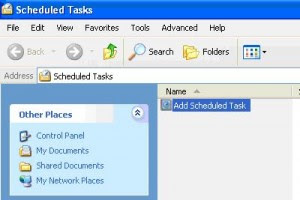
2 Select by double-clicking Add Scheduled Task icon.
3 Then, the Scheduled Task Wizard appears. Click the Next button.
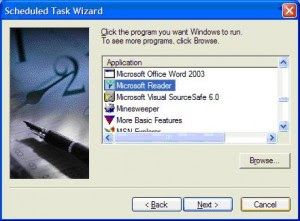
4 Choose the program Windows should run and then click the Next button. Tip: Click the Browse button to see more applications.
5. Enter a name for the task.
6. Look for Perform this task section and click the schedule Windows should follow in running this task. Click the Next button.
7. Specify the desired time and date for the task to start and then click the Next button.
8. Enter a name and password of a user and then click the Next button.
9. Click the Finish button.
That’s it, the selected application is scheduled as a task that will be executed at the interval you specified.
1 Go to the Windows Start menu, select the All Programs option, click the Accessories option, click the System Tools option, and then click Scheduled Tasks.
2 Select by double-clicking Add Scheduled Task icon.

3 Then, the Scheduled Task Wizard appears. Click the Next button.
4 Choose the program Windows should run and then click the Next button. Tip: Click the Browse button to see more applications.

5. Enter a name for the task.
6. Look for Perform this task section and click the schedule Windows should follow in running this task. Click the Next button.
7. Specify the desired time and date for the task to start and then click the Next button.
8. Enter a name and password of a user and then click the Next button.
9. Click the Finish button.
That’s it, the selected application is scheduled as a task that will be executed at the interval you specified.
On Screen Keyboard
On Screen Keyboard
Want to use an on screen keyboard? Well it is this simple - Click on the start button and select run. Then type in osk in the box and click OK.
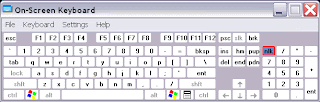
Want to use an on screen keyboard? Well it is this simple - Click on the start button and select run. Then type in osk in the box and click OK.

Subscribe to:
Posts (Atom)


